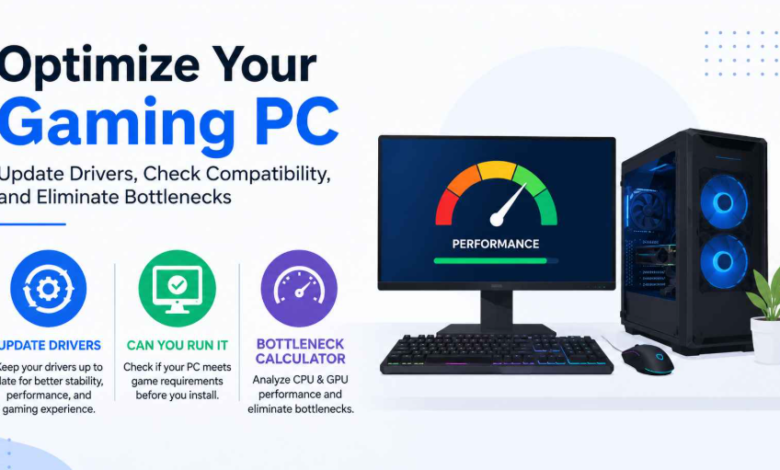
PC gaming offers unmatched flexibility, allowing players to enjoy their favorite titles with customized settings, better graphics, and smoother gameplay. However, even a powerful gaming computer can experience issues such as low FPS, stuttering, crashes, or long loading times. These problems are not always caused by old hardware. Sometimes outdated drivers, incompatible system requirements, or an unbalanced CPU and GPU combination can significantly affect performance.
Before investing in expensive upgrades, it is essential to understand your computer’s current condition. By learning how to update drivers, check whether a game is compatible with your system, and identify hardware limitations, you can make smarter decisions and get better performance from your existing PC.
Keep Your System Running Smoothly by Updating Drivers
Drivers act as a bridge between your operating system and hardware components, including your graphics card, motherboard, sound card, and network devices. When drivers become outdated, missing, or corrupted, they may cause performance drops, compatibility problems, and system instability.
Regularly maintaining your drivers helps your computer operate more efficiently. A reliable driver updater can automatically scan your system, detect outdated drivers, and install the latest versions without requiring manual searches.
IObit Driver Booster is designed to simplify the process of updating drivers. It scans for outdated, missing, and faulty drivers using its extensive driver database and provides a one-click solution to install available updates. It also supports driver backup and restore, giving users a safer way to manage driver changes.
For gamers, keeping graphics drivers and gaming components updated is especially important. Driver Booster can also help update gaming-related components such as DirectX and Visual C++ Redistributables, which may improve compatibility and provide a more stable gaming environment.
Check Whether Your PC Can Run a Game Before Installation
Downloading a large game only to discover your PC cannot handle it can be frustrating. Different games have different requirements, and meeting the minimum requirements does not always guarantee a smooth experience.
A can you run it tool helps users quickly analyze whether their computers meet a game’s minimum and recommended system requirements. Instead of manually comparing technical specifications, users can get a clearer understanding of their system’s ability to run a particular title.
These compatibility checks usually evaluate:
- CPU performance
- GPU capability
- Available RAM
- Operating system compatibility
- Available storage space
The results can also highlight which hardware components may need improvements, helping gamers decide whether they should adjust settings, optimize their system, or consider upgrades.
Identify Performance Issues with a Bottleneck Calculator
Many users believe upgrading to a high-end graphics card automatically guarantees better performance. In reality, a computer is only as strong as its weakest component. When one part of your system cannot keep up with another, a bottleneck occurs.
A bottleneck calculator helps estimate whether your CPU and GPU are properly balanced. For example, a powerful graphics card paired with an older or less capable processor may not reach its full potential because the CPU cannot process tasks quickly enough.
By analyzing your hardware combination, a bottleneck calculator can help you understand potential performance limitations before spending money on new components. This makes it easier to choose upgrades that deliver meaningful improvements rather than replacing parts unnecessarily.
Additional Ways to Improve Gaming Performance
Besides checking hardware compatibility and keeping drivers updated, there are several other methods that can improve gaming performance.
Close Unnecessary Background Programs
Applications running in the background consume CPU power, RAM, and storage resources. Closing unnecessary programs before gaming can free up system resources.
Maintain Enough Storage Space
Games continue to grow in size, and a nearly full storage drive may negatively affect loading times and overall responsiveness. Keeping enough free space helps your operating system and games run more efficiently.
Monitor System Temperature
Overheating can cause CPUs and GPUs to reduce their operating speed to protect themselves, resulting in lower frame rates. Proper cooling and regular cleaning can help maintain stable performance.
Adjust In-Game Graphics Settings
Not every system can run games at maximum graphics settings. Lowering demanding options such as shadows, ray tracing, and high-resolution textures can provide smoother gameplay without requiring hardware upgrades.
Build a Better Gaming Experience Without Unnecessary Upgrades
Many PC users replace hardware too quickly without understanding what is causing their performance issues. A systematic approach can save money and provide better results.
Start by checking whether your system can handle a game, analyze whether your hardware has a performance imbalance, and keep essential drivers up to date. These simple steps can resolve many common gaming issues and extend the useful life of your current PC.
Tools like IObit Driver Booster for driver maintenance, a can you run it checker for game compatibility, and a bottleneck calculator for hardware analysis can make PC optimization much easier for both beginner and experienced gamers.
Final Thoughts
Optimizing a gaming PC is about maintaining the right balance between hardware and software. You do not always need to buy new components to achieve better gaming performance.
By taking time to update drivers, verify game requirements before installation, and identify CPU and GPU limitations, you can enjoy smoother gameplay, fewer crashes, and a more stable system. Using the right optimization tools helps you understand your PC’s capabilities and make informed decisions when upgrading or improving your gaming setup.
FAQs
Why is it important to update drivers regularly?
Updating drivers helps improve hardware compatibility, system stability, and gaming performance. It can also fix bugs and ensure your devices work with the latest software and games.
How can I check if my PC can run a game?
You can use a can you run it tool to compare your CPU, GPU, RAM, operating system, and storage with a game’s minimum and recommended requirements.
What does a bottleneck calculator do?
A bottleneck calculator analyzes your CPU and GPU combination to estimate whether one component may limit the performance of the other.
Can outdated drivers affect gaming performance?
Yes, outdated or faulty drivers can cause issues like lower FPS, crashes, graphical errors, and compatibility problems in games.
Do I always need to upgrade my PC for better gaming performance?
No. In many cases, optimizing your system, updating drivers, adjusting game settings, and identifying performance bottlenecks can improve your gaming experience without buying new hardware.