Have you ever tried to play an AVI video on your phone, tablet, or smart TV only to find that it would not open? I have faced this problem several times while working with older video files.
AVI is a well-known format, but it is not always supported by modern devices and apps. This often leaves people wondering why the video works on one device but not on another.
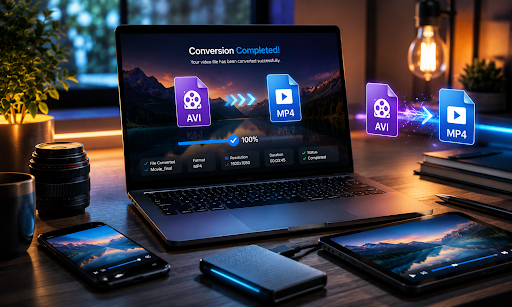
From my experience, converting an AVI file to MP4 is usually the quickest and easiest solution. MP4 is supported by almost every operating system, media player, and social media platform, making it a much better choice for everyday use.
In this guide, you’ll learn why people convert AVI to MP4, the best methods to do it, and how to keep your video quality during the conversion process.
What Is an AVI File?
AVI stands for Audio Video Interleave. It is a multimedia file format developed by Microsoft to store both video and audio in a single file. For many years, AVI was one of the most popular video formats because it offered good video quality and worked well on Windows computers.
Although AVI is still used today, it has become less common because newer formats provide better compression and wider compatibility. Many older movies, home videos, and recorded content are still saved as AVI files.
You will often find AVI files in:
- Older video collections
- Home video recordings
- DVDs converted to digital files
- Windows-based video projects
- Archived multimedia files
If you have an older computer or external hard drive, there is a good chance you already have AVI files stored on it.
Why Convert an AVI File to MP4?
Many people convert AVI files because MP4 works better with today’s devices and software. While AVI can still provide good quality, it often creates compatibility problems when you try to play or share the video.
Converting to MP4 offers several advantages, including:
- Better compatibility with Windows and macOS
- Works on Android and iPhone
- Smaller file sizes
- Easier video sharing
- Faster uploads to websites and social media
- Support from most video editing software
For most users, MP4 is the more practical format because it plays smoothly on almost every modern device.
Does Converting AVI to MP4 Reduce Video Quality?
Many people worry that converting a video will make it look blurry or lose detail. In most cases, this does not happen if you use the right settings and a reliable converter.
The final quality depends on several factors, such as:
- The quality of the original AVI file
- The video codec you choose
- Compression settings
- Resolution
- Bitrate
If your original video is already high quality, you can usually convert it to MP4 with little or no noticeable difference.
What Is the Best Format for Converted Videos?
When choosing an output format, MP4 is usually the best option for most people. It offers an excellent balance between video quality, file size, and compatibility.
MP4 works well with:
- Windows
- macOS
- Android
- iPhone and iPad
- Smart TVs
- YouTube
- Most web browsers
Because of its wide support, MP4 has become the standard video format for sharing and storing videos.
How Do You Convert an AVI File to MP4?
There are several ways to convert an AVI file, and the best method depends on your needs. Some people prefer online converters because they work directly in a web browser, while others choose desktop software for larger files or advanced settings.
No matter which method you choose, the basic process is usually the same:
- Upload or open your AVI file.
- Select MP4 as the output format.
- Choose your preferred quality settings.
- Start the conversion.
- Download and save the new MP4 file.
The entire process usually takes only a few minutes, depending on the file size and your internet speed.
Convert AVI to MP4 Using an Online Tool
Online converters are a great option if you do not want to install additional software. They work from almost any device with an internet connection and are usually easy to use, even for beginners.
If you are looking for a simple browser-based solution, AhaConvert lets you upload your AVI file, choose MP4 as the output format, and download the converted file in just a few steps. This option is especially helpful when you need a quick conversion without using desktop software.
Convert AVI to MP4 Using Desktop Software
Desktop software is a good choice if you regularly convert videos or work with large files. These programs usually offer more control over video quality, resolution, bitrate, and compression settings than online tools.
The general steps are similar across most video converters:
- Install and open the video converter.
- Import your AVI file.
- Select MP4 as the output format.
- Adjust the video settings if needed.
- Click Convert and save the new file.
Desktop software is especially useful for large videos because it does not depend on your internet speed.
How Long Does It Take to Convert an AVI File?
The time needed to convert an AVI file depends on several factors. Small videos may finish in less than a minute, while larger or high-resolution files can take much longer.
The conversion speed depends on:
- File size
- Video resolution
- Computer performance
- Internet speed for online converters
- Compression settings
For most standard videos, the conversion process is completed within a few minutes.
Common Problems When Converting AVI to MP4
Most conversions finish without any issues, but sometimes users experience unexpected problems. Knowing the common causes can help you fix them quickly and avoid repeating the same mistakes.
Here are some problems you may encounter.
Poor Video Quality
If the converted video looks blurry, the output settings may be too low. Choosing a higher bitrate or resolution usually improves the result.
No Audio
Some AVI files use audio codecs that are not fully supported during conversion. Trying another converter or selecting different output settings can often solve this problem.
Large File Size
If your MP4 file is larger than expected, the bitrate may be set too high. Lowering the bitrate slightly can reduce the file size while keeping good quality.
Conversion Stops Before Finishing
This may happen because of a damaged AVI file, limited storage space, or an interrupted internet connection when using an online converter.
Tips for the Best AVI to MP4 Conversion
A few simple steps can help you get better results when converting videos. These tips help maintain video quality while keeping file sizes manageable.
Here are some best practices:
- Start with the highest-quality AVI file available.
- Choose MP4 with the H.264 codec for broad compatibility.
- Keep the original resolution whenever possible.
- Avoid converting the same video multiple times.
- Save a copy of the original AVI file before converting.
Following these tips helps produce a cleaner and more reliable MP4 file.
When Should You Convert an AVI File?
Not every AVI file needs to be converted. If the video already plays well on your device and you do not plan to share or edit it, keeping the original file may be perfectly fine.
However, converting is recommended when:
- Your device cannot play AVI files.
- You want to upload the video online.
- You need better compatibility with mobile devices.
- You plan to edit the video using modern software.
- You want a smaller file size without losing much quality.
Converting at the right time makes your videos easier to use across different platforms.
Choosing the Right AVI Converter
There are many tools available for converting AVI files, but they are not all the same. Some focus on speed, while others provide more options for controlling video quality and output settings.
When choosing a converter, look for features such as:
- Support for multiple video formats
- Fast conversion speed
- Easy-to-use interface
- High-quality output
- Secure file handling
If you want a simple browser-based solution, an online AVI Converter can help you change AVI files into MP4 and other popular formats without installing additional software.
VI vs MP4: Which Format Is Better?
AVI and MP4 are both popular video formats, but they are built for different purposes. AVI was introduced many years ago and is known for storing high-quality video. MP4 is a newer format that offers better compatibility and more efficient compression.
If you want a format that works on almost every device, MP4 is usually the better choice.
| Feature | AVI | MP4 |
| Compatibility | Good on Windows | Excellent on almost all devices |
| File Size | Usually larger | Usually smaller |
| Video Quality | High | High with better compression |
| Streaming | Limited | Excellent |
| Mobile Support | Limited | Excellent |
| Social Media Uploads | Less suitable | Widely supported |
For everyday use, MP4 provides a better balance between quality, storage space, and compatibility.
Is It Safe to Convert AVI Files Online?
Many people prefer online converters because they are fast and easy to use. However, it is important to choose a trusted service, especially if your videos contain personal or sensitive information.
Before uploading your files, consider the following:
- Use a reputable conversion tool.
- Read the site’s privacy policy.
- Avoid uploading confidential videos to unknown websites.
- Delete downloaded files you no longer need from shared devices.
- Keep a backup of the original AVI file.
Following these simple steps helps protect your files while making the conversion process more secure.
Conclusion
Converting an AVI file to MP4 is one of the easiest ways to improve video compatibility. While AVI is still a useful format for older video collections, MP4 works better with modern devices, media players, video editing software, and online platforms. For most users, changing an AVI file to MP4 makes sharing and watching videos much more convenient.
From my experience working with video files, converting AVI to MP4 solves many playback problems without noticeably reducing video quality. I have converted older family videos, archived recordings, and work projects using this method, and the results have been reliable across different devices.
If you use the right settings and a trusted conversion tool, the process is quick, simple, and gives you a video format that is ready for almost any situation.